A complete guide for modifying the Flutter Icon App
Originally published on Medium on June 30, 2024.
Your app icon is an important part of releasing a Flutter application: it gives users their first impression of your app. This guide explains how to configure it manually, without installing a Flutter package.
Prepare your app icon
- Create your app icon using a design tool such as Canva or Adobe Illustrator.
- Export it at a resolution of 1024 × 1024 pixels.
- Use an online tool such as App Icon Generator or EasyAppIcon to generate the required sizes.
- Upload your icon, select the platforms you need, and generate the files.
For this project, I used App Icon Generator for iOS and EasyAppIcon for Android. This helped avoid an issue where the icon did not fill the available space.
Android
Add the generated resources
Open the following directory in your Flutter project:
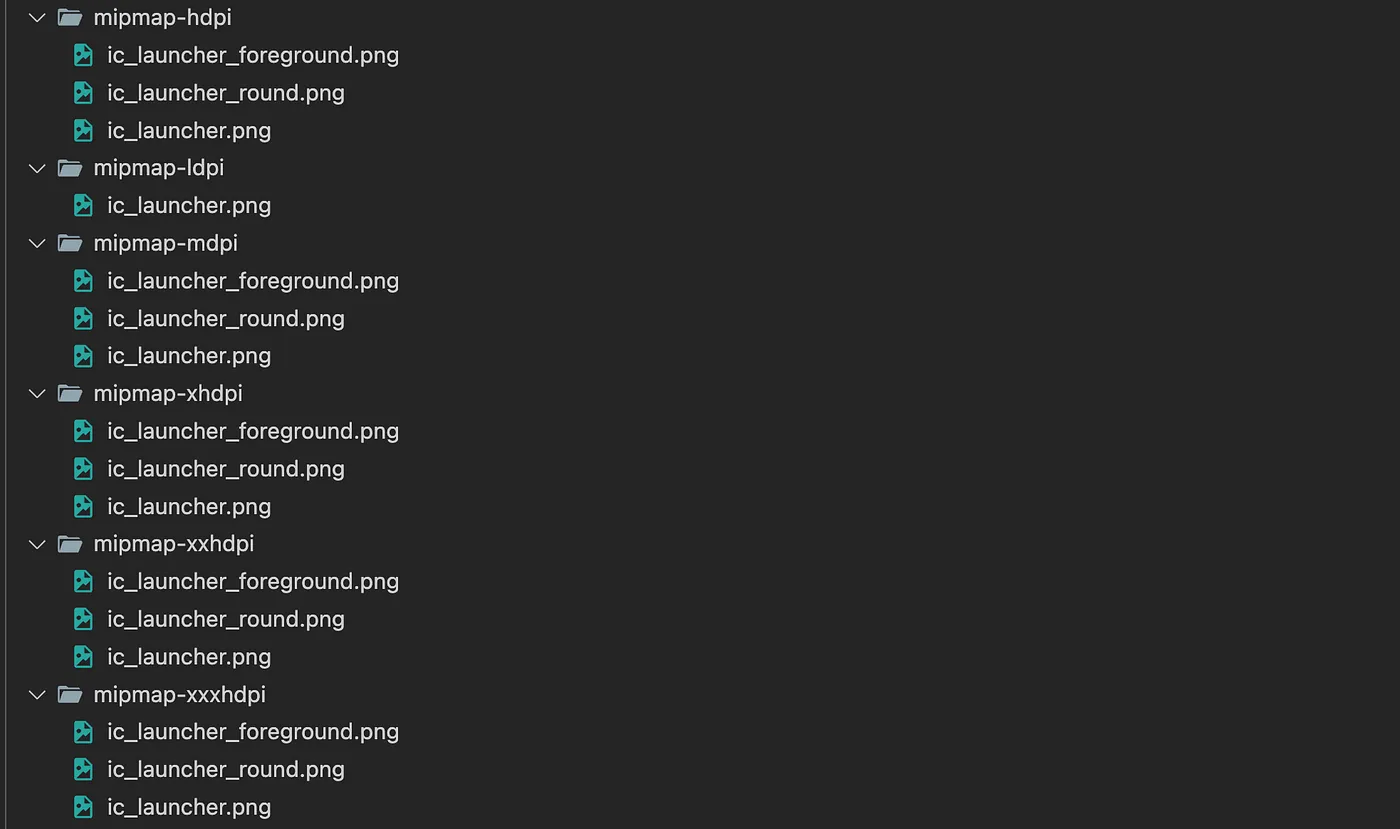
android/app/src/main/resCopy the generated resource folders into this directory, as shown below.
Configure the round icon
Open your Android manifest:
android/app/src/main/AndroidManifest.xmlAdd the following attribute to the existing <application> tag:
android:roundIcon="@mipmap/ic_launcher_round"iOS
Generate the iPhone icon set
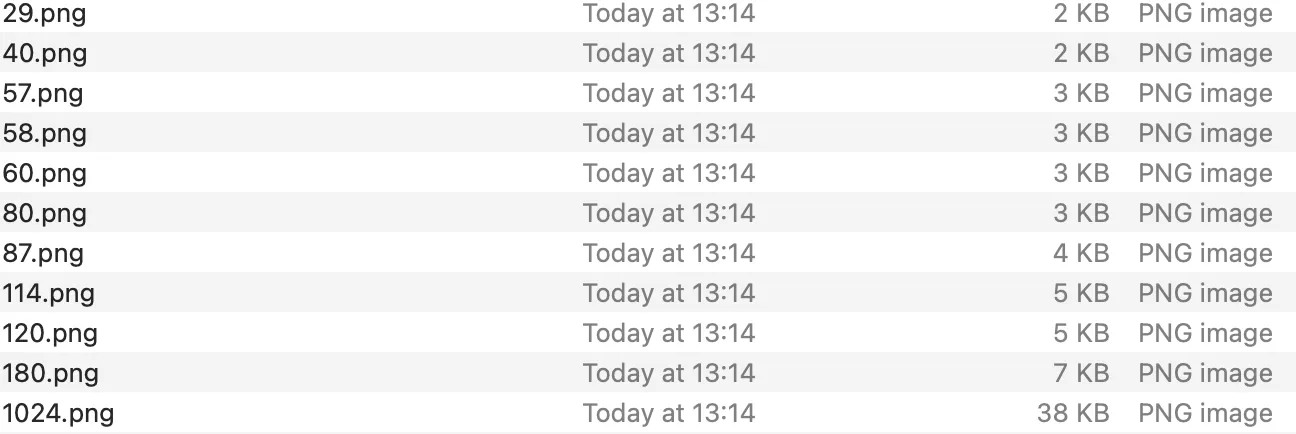
When you select iPhone in App Icon Generator, the downloaded files include the app icon asset set shown below.
Replace the existing asset set
Open the asset catalog directory:
ios/Runner/Assets.xcassets/Replace the existing AppIcon.appiconset folder with the generated folder.
Check the filenames
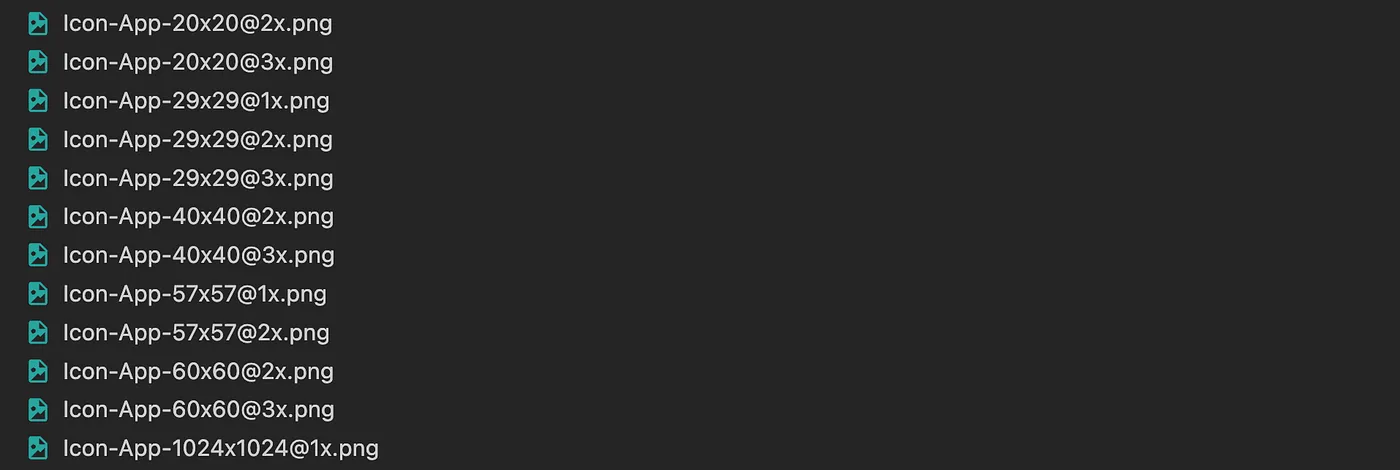
Inside AppIcon.appiconset, open Contents.json. If you rename any generated icon files, update the corresponding filename values to match. Otherwise, keep the generated names and references unchanged.
I used the naming pattern shown here:
Run your application
Run the application and check that the new icon appears correctly.
The iOS icons generated for this example were intended for iPhone. If your app also targets other Apple devices, select the relevant device options when generating the icons.
For more information, see the official icon guidance from Apple and Material Design.
I hope this guide brings you one step closer to releasing your application.